Lighthouse auditing with github actions for Vercel deployments
This week I accidentally removed my sitemap.xml when configuring some pre-rendering settings which then led me to discover that I had not been serving a robots.txt page for a couple of months. This post goes through my steps to help prevent this from happening again.
Lighthouse
Lighthouse is an auditing tool maintained by Google that has the capabilities to assess a site's performance, accessibility, best practices and Seo. Google's PageSpeed Insights uses lighthouse under the hood to perform analysis on pages if you are familiar with that.
What Vercel already gives you
Vercel has Speed insights which is easy to set up but is only limited to showing you how the user is performing when actively used. There seems to be a promoted integration with Vercel DebugBear that can serve the same purpose. However on the day I did this, their docs were down so I did not proceed.
Goals
- Lighthouse can be run locally for quick development (this can also be integrated with Chrome)
- Tests are run on all branches pushed to Github
- Production deploys are also subjected to testing
Setting up Lighthouse
Prerequisites
- Code is hosted on Github
- Project is deployed to Vercel
- Basic Github actions knowledge
Installation and configuration
In your project run with your dedicated package manager
pnpm add -D @lhci/cli Create a lighthouserc.cjs file in the root of your directory here we will need to consider that this will be getting read locally and from Github actions.
const fs = require('fs')

const isProduction =
  process.env.BASE_URL && process.env.BASE_URL.includes('jeremyharland.com')

const paths = ['/', '/pick', '/your', '/urls', '/here']
const urls = paths.map(
  (path) => `${process.env.BASE_URL || 'http://localhost:3000'}${path}`,
)

module.exports = {
  ci: {
    collect: {
      url: urls,
      numberOfRuns: isProduction ? 3 : 1,
      settings: {
        preset: 'desktop',
        throttlingMethod: 'simulate',
        mobile: false,
        width: 1350,
        height: 940,
        deviceScaleFactor: 1,
        chromeFlags: '--headless --no-sandbox',
        blockedUrlPatterns: [
          '*google-analytics*',
          '*googletagmanager*',
          '*hotjar*',
          '*segment*',
          '*sentry*',
        ],
      },
    },
    upload: {
      target: 'temporary-public-storage',
    },
  },
}Build your project and serve it locally, performance scores will be poor if you run the dev server instead of the built preview
pnpm build && pnpm previewthen on another console run the tests
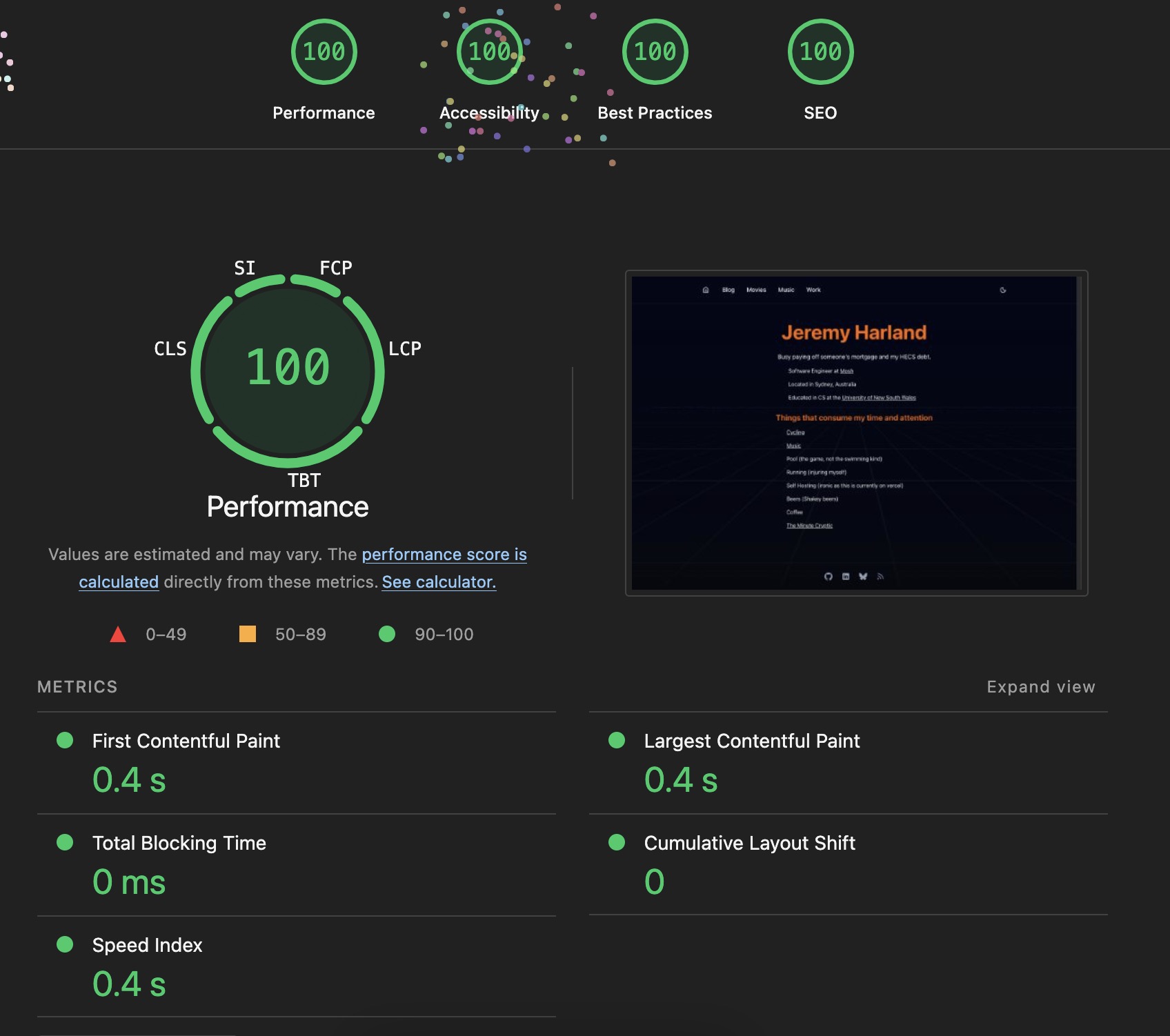
pnpm dlx @lhci/cli autorun Once these have finished open the report and you should hopefully see something like this.
Github Integration
Workflow YAML file
create a lighthouse.yml in .github/workflows/ with the following content.
name: Lighthouse CI

on:
  deployment_status:

jobs:
  lighthouse:
    if: github.event.deployment_status.state == 'success'
    runs-on: ubuntu-latest
    steps:
      - name: Checkout
        uses: actions/checkout@v4

      - name: Install pnpm
        uses: pnpm/action-setup@v4
        with:
          version: 9.15.4
      - uses: actions/setup-node@v4
        with:
          node-version: '24'
          cache: pnpm

      - name: Set base URL
        id: url
        run: |
          if [ "${{ github.event.deployment.environment }}" = "Production" ]; then
            echo "value=https://yourdomain.com" >> $GITHUB_OUTPUT
          else
            echo "value=${{ github.event.deployment_status.target_url }}" >> $GITHUB_OUTPUT
          fi

      - name: Run Lighthouse CI
        run: pnpm dlx @lhci/cli autorun
        env:
          BASE_URL: ${{ steps.url.outputs.value }}
LHCI_GITHUB_APP_TOKEN: ${{ secrets.LHCI_GITHUB_APP_TOKEN }}Lighthouse Github App
Although not required, this makes your pr's look a bit nicer and creates a small summary of your actions run. Configure lighthouse ci for your Github project.
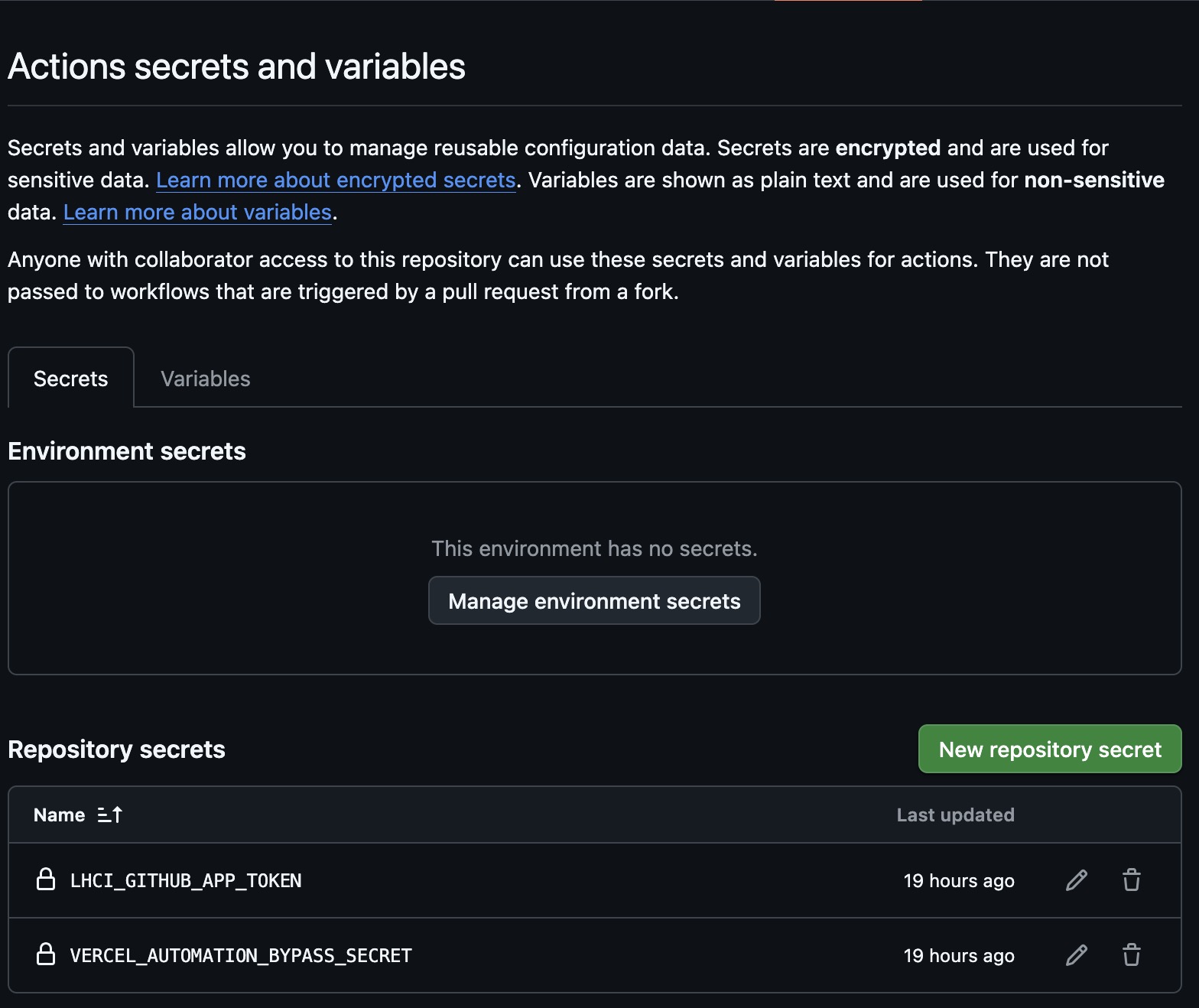
Add LHCI_GITHUB_APP_TOKEN as a secret for your actions.
Vercel Protection rules
If you had jumped the gun and pushed this all to Github you will have noticed that your preview runs would have failed due to lighthouse not being able to access your page.
In your Vercel project deployment protection settings create a bypass secret that we will add as headers to our lighthouse config.
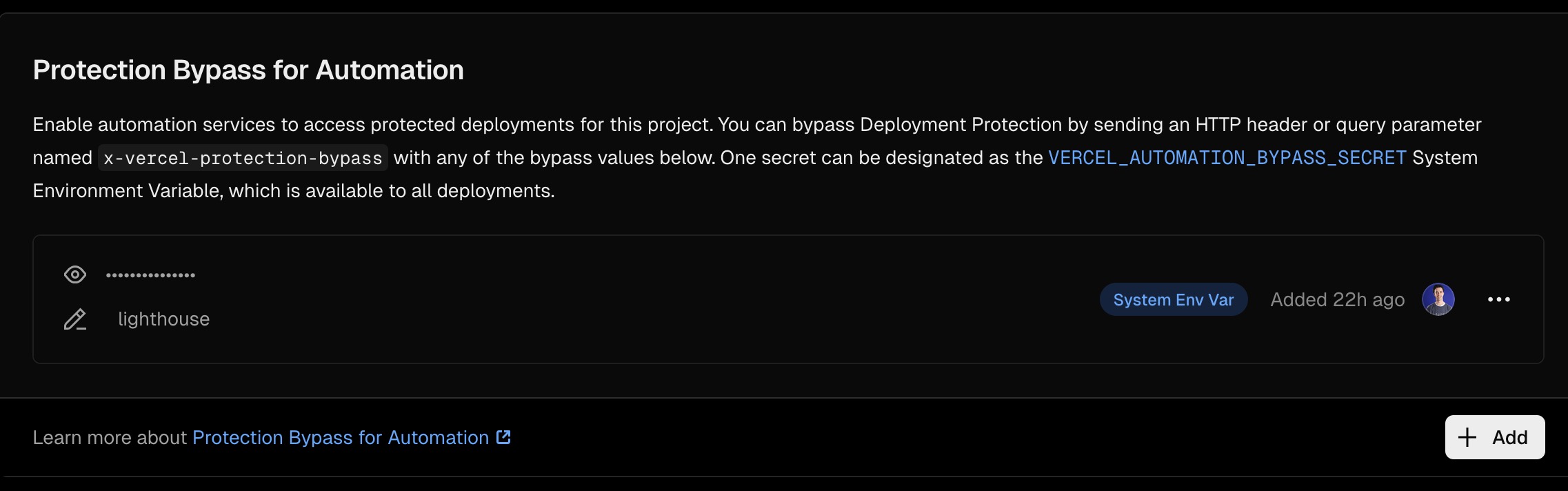
Add this to your github action secrets as VERCEL_AUTOMATION_BYPASS_SECRET and pass this into the autorun action in lighthouse.yml. Finally in the Lighthouse config file add this to the settings section.
extraHeaders: {
          'x-vercel-protection-bypass':
            process.env.VERCEL_AUTOMATION_BYPASS_SECRET || '',
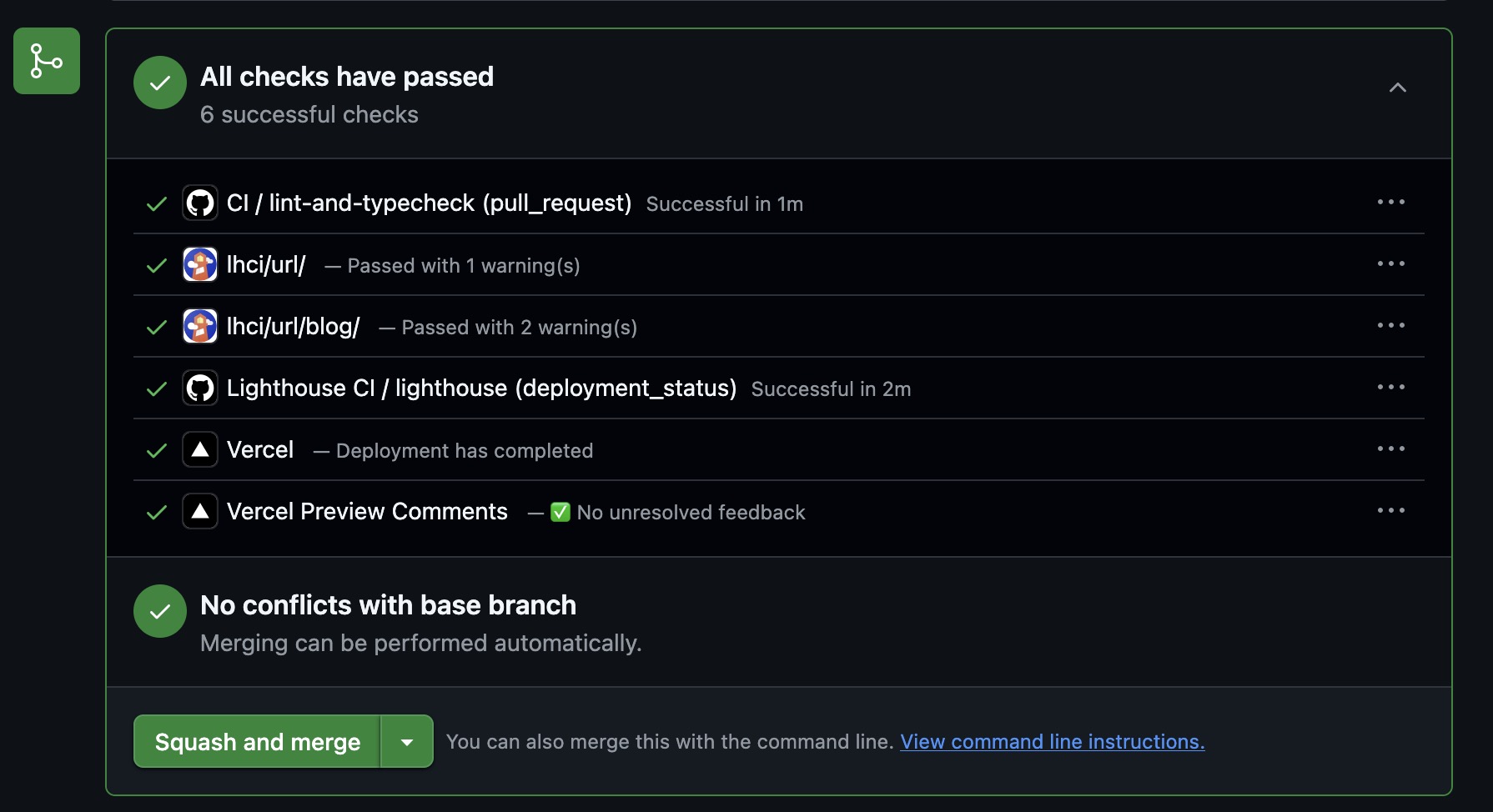
},Now lighthouse will be able to successfully access preview branches and pushing to your repo should look like this now.
Assertions
Now you can add some assertions to your lighthouse config. The main thing to note here is that your SEO assertions will need to be off for previews as these pages are not indexed.
assert: {
      assertions: {
        // SEO specifics — skip on preview, these will always fail
        'meta-description': isProduction ? ['warn', { minScore: 1 }] : 'off',
        'robots-txt': isProduction ? ['warn', { minScore: 1 }] : 'off',
        canonical: isProduction ? ['warn', { minScore: 1 }] : 'off',
      }
}Tips & Future iterations
For my project I created a script that pulls all my urls from sitemap.xml and writes them to a text file. This is executed within the lighthouse workflow.
Currently these only test for one type of screen view so there is room to extend that.
Comments
No comments yet. Be the first!